Guide
TikTok safe zone checker: see what the app covers on your video
Updated
TikTok, Reels and Shorts put buttons and text over the edges of your video. Drop your file here to see where, in your browser, with nothing uploaded.
In short
- This free checker shows which parts of your 9:16 video TikTok, Reels and Shorts cover with buttons and text.
- TikTok covers about 108 pixels at the top, 320 at the bottom, 60 on the left and 120 on the right.
- Reels covers the most at the bottom, about 420 pixels, so keep your captions above that.
- The middle 900 × 1,280 pixels is clear of the top and bottom bars on all three apps. All three also put like, comment and share buttons down the right side.
- Your file stays in your browser. Nothing is uploaded and you do not need an account.

- TikTok — top ~108px, bottom ~320px, left ~60px, right ~120px. Covers: system row up top; username, caption and sound at the bottom; the action rail down the right.
- Reels — top ~220px, bottom ~420px. Covers: camera and audio row up top; account line, collapsed caption and actions at the bottom.
- Shorts — top ~120px, bottom ~360px. Covers: search and camera up top; title, channel and subscribe at the bottom.
Margins are approximate — platforms shift their UI with every redesign, so keep anything essential well inside the dashed line. Your file is opened with a local object URL and never leaves the browser: nothing uploads, nothing is stored, no account needed.
- The video size every zone is measured on
- 1080 × 1920
- What Reels covers at the bottom
- ~420px
- Clear of the top and bottom bars on all three apps, roughly
- 900 × 1280
How to use the safe zone checker
You drop a file, switch on the apps you post to, and keep the important parts inside the dashed green box.
- The empty frame shows every app's zones, even before you add a file.
- A video opens on its first frame. Move the slider to check any other moment.
- A file that is not 9:16 is shown cropped to 9:16 from the middle.
- The checker draws the top and bottom zones for Reels and Shorts, but not their buttons on the right side. Keep the right 120 pixels clear on those two apps as well, the same as on TikTok.
- Your file opens inside your browser. Nothing is sent to a server or stored.
Check a video in four steps
The dashed green box is the area the checker marks as clear for the apps you switched on.
Drop a file
an image or a video
Pick a moment
the slider moves through the video
Switch on the apps
TikTok, Reels, Shorts
Check the green box
faces, products and text go inside
TikTok, Reels and Shorts safe zone sizes
All numbers are pixels on a 1080 × 1920 video, and all are approximate.
- TikTok puts its top menu at the top, your username, caption and sound at the bottom, and its buttons down the right side.
- On TikTok, the 60 pixels on the left are a margin that keeps text off the edge of the screen.
- Reels puts the camera row at the top, your account name and caption at the bottom, and the like, comment and share buttons down the right side.
- Shorts puts search and the camera at the top, the title, channel name and Subscribe button at the bottom, and the like, comment and share buttons down the right side.
- TikTok's button column is about 120 pixels wide and the checker draws it. Use the same 120 pixels on Reels and Shorts, and check a call to action on your phone before you post.
- When a viewer taps the caption open or opens the comments, the app covers the lower half of the video or more. Anything that has to be read every time belongs in the top half.
What each app covers, in pixels
The apps change their layout between versions, regions and ad formats. Treat these as a minimum.
| App | Top | Bottom | Sides |
|---|---|---|---|
| TikTok | ~108 | ~320 | ~60 on the left, ~120 on the right |
| Instagram Reels | ~220 | ~420 | Like, comment and share buttons down the right side, which the checker does not draw |
| YouTube Shorts | ~120 | ~360 | Like, comment and share buttons down the right side, which the checker does not draw |
| All three | ~220 | ~420 | ~60 on the left, and ~120 on the right, which is TikTok's button column: keep that clear on every app |
App: TikTok
- Top
- ~108
- Bottom
- ~320
- Sides
- ~60 on the left, ~120 on the right
App: Instagram Reels
- Top
- ~220
- Bottom
- ~420
- Sides
- Like, comment and share buttons down the right side, which the checker does not draw
App: YouTube Shorts
- Top
- ~120
- Bottom
- ~360
- Sides
- Like, comment and share buttons down the right side, which the checker does not draw
App: All three
- Top
- ~220
- Bottom
- ~420
- Sides
- ~60 on the left, and ~120 on the right, which is TikTok's button column: keep that clear on every app
This is the whole editor
Highlight a phrase and a clip lands on those exact words. No timeline, no keyframes, no layers.
One safe zone for all three apps
If you post the same video on all three apps, use the biggest margin on each side.
- The top margin is 220 pixels, from Reels.
- The bottom margin is 420 pixels, from Reels.
- The left margin is 60 pixels, from TikTok.
- The right margin is 120 pixels, from TikTok. Reels and Shorts put their buttons down the right side too, so keep those 120 pixels clear whichever app you post to.
- Those four margins leave about 900 × 1,280 pixels in the middle. Switch on all three apps in the checker to see that area on your own file.
How much of the video is safe on all three apps
900 × 1,280 out of 1080 × 1920 is about 56% of the video.
Where to put captions, faces and logos
A face filmed on a phone usually sits in the middle already. Text and logos near the edges are what the apps cover.
- Put captions in the lower middle of the safe zone, above the bottom 420 pixels.
- Keep a call to action out of the right 120 pixels, where all three apps put their like, comment and share buttons.
- Keep logos out of the four corners. The top 220 pixels and the bottom 420 belong to at least one app, so a logo in a corner is covered on something.
- If you put text near the top, start it at least 220 pixels down from the edge.
Safe zone for Reels ads
Ads need more room than normal posts. Meta asks you to keep these parts of a Reels ad free of text and logos. Otherwise the profile icon or the ad's button can cover them.
- Meta's rule leaves about 950 × 980 pixels in the middle: 270 pixels off the top, 670 off the bottom and 65 off each side of a 1080 × 1920 video.
- The bottom 35% is where the ad's button and your caption sit, so keep prices and offers above it.
- The checker draws the normal app layout, not the ad layout, so leave this extra room yourself on ads.
Meta's safe zone for Reels ads, on a 1080 × 1920 video
Source: Meta's Ads Guide for Reels video ads (checked 22 September 2026).
| Edge | Keep free | In pixels |
|---|---|---|
| Top | 14% | About 270 |
| Bottom | 35% | About 670 |
| Left and right | 6% on each side | About 65 on each side |
Edge: Top
- Keep free
- 14%
- In pixels
- About 270
Edge: Bottom
- Keep free
- 35%
- In pixels
- About 670
Edge: Left and right
- Keep free
- 6% on each side
- In pixels
- About 65 on each side
Where Cutroom fits
Cutroom turns a clip of you talking into a finished vertical video. It exports at 1080 × 1920, the same size this checker uses.
- You can move the captions up or down and set their size with a slider, so they stay inside the safe zone.
- You pick one of 40 caption themes, then its font and colour.
- Cutroom cannot move what you filmed. If your product sits at the bottom of the shot, film it higher next time.
- Your first video is free, with no card, and you have 7 days to make it.
Caption themes you can place inside the safe zone
A few of the 40 caption themes. You set their size and height.
 Shout
Shout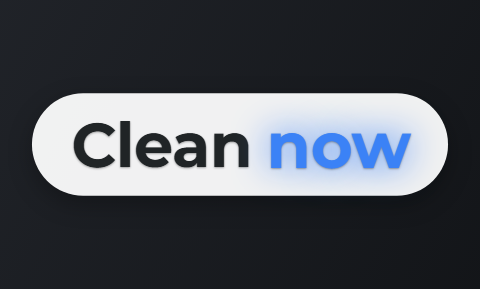 Clean
Clean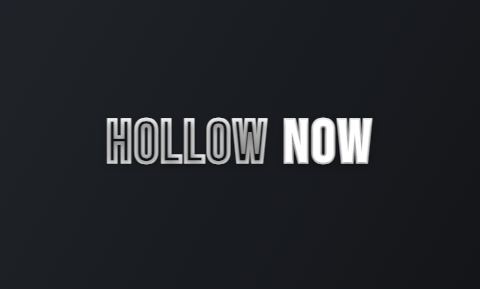 Hollow
 Neon
Neon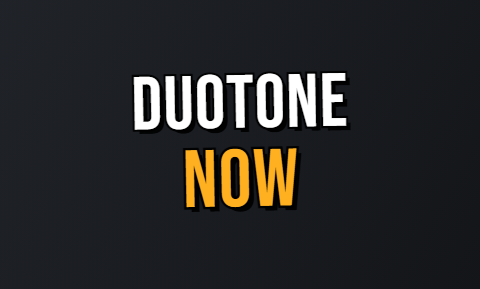 Duotone
 Press
Press Bubble
 Pour
Pour
Questions people ask
- What is the TikTok safe zone?
- The TikTok safe zone is the part of your video that TikTok's buttons and text do not cover. On a 1080 × 1920 video that is about 900 × 1,492 pixels in the middle. Keep faces, products and text inside it.
- What is the Instagram Reels safe zone?
- Reels covers about 220 pixels at the top and 420 at the bottom of a 1080 × 1920 video, and its like, comment and share buttons sit down the right side. For ads, Meta asks for more room: 14% at the top, 6% on each side and 35% at the bottom.
- Is there one safe zone for TikTok, Reels and Shorts?
- Almost. Keep everything 220 pixels from the top, 420 from the bottom, 60 from the left and 120 from the right, which is the middle 900 × 1,280 pixels. The 120 on the right is TikTok's button column, and Reels and Shorts have one there too, so keep it clear whichever app you post to.
- Does my video get uploaded?
- No. The file opens inside your browser. Nothing is sent to a server or stored, and closing the tab removes it, so it is safe to check an ad that is not public yet.
- Are the pixel numbers exact?
- No, they are close estimates. The apps change their layout between versions, regions and ad formats, so leave some extra room and check again after a redesign.
- What if my video is not 9:16?
- The checker shows it cropped to 9:16 from the middle. If that cuts off something you need, film or export the video in vertical 9:16.
- Do safe zones matter for ads too?
- Yes, even more. On Reels ads, Meta asks you to keep the bottom 35% of the video (about 670 pixels) free, because the ad's button sits there. It also asks for 14% at the top and 6% on each side.
Drop your file and keep what matters inside the green box. When you want the video edited for you, your first video is free.